Install IPTV Smarters Pro on Firestick
A complete guide to Amazon Fire TV technology, sideloading apps, and setting up IPTV streaming on your Firestick — then loading your IPTV4CHEAP login for 25,000+ channels in 4K/HD.
IPTV Smarters Pro APK
Direct download for Firestick & Android devices
wp.iptv4cheap.com/smarters.apk
Understanding Amazon Fire TV
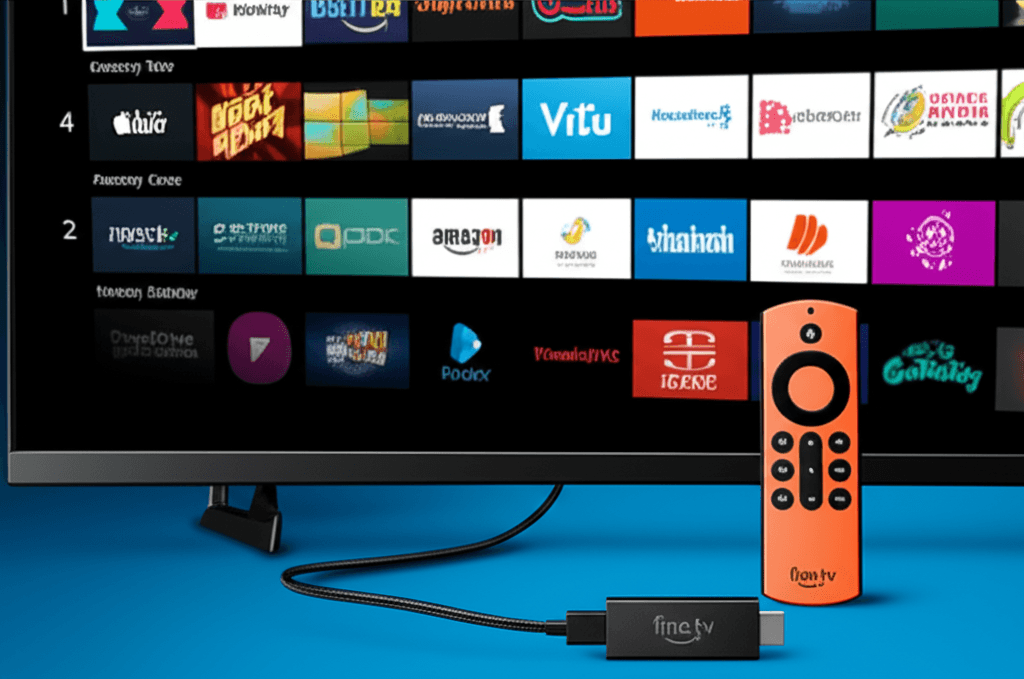
Amazon Fire TV is a family of streaming players and microconsoles that first launched back in April 2014 and has since become one of the most widely used streaming platforms in the world. The line-up spans the pocket-sized Fire TV Stick, the more capable Fire TV Cube with its own speakers and hands-free Alexa, and Fire TV Edition televisions with the platform built straight into the set.
Every Fire TV device runs Fire OS, Amazon's own fork of Android. That Android base is exactly why IPTV apps work here: Fire OS stays compatible with Android's APK (Android Package Kit) format, so apps packaged as APKs can be added to a Firestick through a process called sideloading.
Fire TV hardware generations
The Fire TV Stick has improved a lot across its generations. The 2014 original shipped with a quad-core chip and 2GB of RAM — impressive for a streaming stick at the time. Later models added 4K Ultra HD, HDR, Dolby Atmos audio and Wi-Fi 6. Today the Fire TV Stick 4K Max sits at the top of the stick range with a MediaTek MT8696 processor that comfortably handles heavy streaming apps.
The Fire TV Cube, launched in 2018, is Amazon's premium box. Rather than hanging off an HDMI port, it works as a standalone unit with far-field mics for hands-free Alexa. The 2022 third-gen Cube pairs an octa-core processor with 2GB of RAM and supports 4K Ultra HD, Dolby Vision, HDR10+ and HDR10 — headroom that helps when an IPTV app is decoding live video.
What is sideloading?
Sideloading is the act of installing an application package onto a phone or streaming box from somewhere other than the official app store. On Android-based systems like Fire TV, it specifically means installing APK files that don't come from the Amazon Appstore or Google Play.
It only works once you've switched on "Apps from Unknown Sources" in the device settings — a safeguard that stops anything installing without your say-so. With that enabled, you can install APKs you've downloaded from the web, copied over USB, or sent across by Bluetooth.
Why IPTV apps need sideloading
A lot of IPTV players simply aren't in the Amazon Appstore, because Amazon regularly removes streaming apps that can open third-party content. Those apps stay completely functional — they just need a different install route, and sideloading is that legitimate route on Android-based systems.
The upside of sideloading
Sideloading brings a few real advantages over store installs: there are no regional limits on what you can install, apps can be updated without waiting on store approval, and you can keep using apps that were pulled from official stores for policy reasons that have nothing to do with how well they work.
How IPTV streaming works on Fire TV
IPTV (Internet Protocol Television) on a Firestick follows a well-defined technical path. When you open an IPTV app and enter your subscription details, the app connects to the provider's servers — most services use the Xtream Codes API or a similar protocol to sign you in and hand over content.
During sign-in the app sends your username, password and server URL to the provider's authentication server. Once verified, the server returns a token plus your channel list grouped by category, complete with stream URLs, EPG (TV guide) data and channel logos, which the app then lays out in its interface.
Pick a channel and the app requests that stream from the delivery server. Modern IPTV usually relies on HLS (HTTP Live Streaming) or MPEG-DASH, which chop the video into small segments. Your Fire TV decodes those segments in real time using hardware acceleration, turning the compressed feed (typically H.264 or H.265/HEVC) into the picture on your TV.
Video codecs & quality
Fire TV supports the codecs IPTV playback depends on. H.264 (AVC) is the most broadly compatible; H.265 (HEVC) squeezes roughly 50% more efficiency out of the same quality, which makes it ideal for 4K; and newer Fire TV hardware also handles AV1, a royalty-free codec that's more efficient again.
The quality you actually see comes down to your connection speed, the stream quality your provider sends, and your device's decoding power. SD (480p) needs just 2–4 Mbps, HD (720p/1080p) wants 5–15 Mbps, and 4K Ultra HD asks for 25 Mbps or more to play smoothly without buffering.
Step-by-step installation guide
Six steps to get IPTV Smarters Pro running on your Firestick.
Enable Apps from Unknown Sources
On your Firestick open Settings → My Fire TV → Developer Options and switch on 'Apps from Unknown Sources'.
Pro tip: This one setting is what lets you install apps that aren't in the Amazon Appstore.
Install the Downloader App
From the Firestick home screen, search 'Downloader', open the result and install the free app. It handles the whole download-and-install flow.
Pro tip: Look for the orange icon with a white download arrow.
Download the IPTV Smarters Pro APK
Open Downloader, type wp.iptv4cheap.com/smarters.apk into the address bar and press Go to start the download.
Pro tip: Enter the URL exactly: wp.iptv4cheap.com/smarters.apk
Install the APK
When the download finishes, choose Install, wait for it to complete, then select Done (or Open).
Pro tip: If a security prompt appears, choose Install Anyway — it's expected for sideloaded apps.
Open IPTV Smarters Pro
Find IPTV Smarters Pro under your Apps, launch it and accept the terms of service.
Pro tip: Hold the Home button and open Apps if you can't see it on the main row.
Add Your IPTV4CHEAP Login
Choose 'Login with Xtream Codes API' (easiest) and enter the username, password and server URL from your IPTV4CHEAP welcome email.
Pro tip: Prefer M3U? Pick 'Load Your Playlist or File/URL' and paste the M3U link instead.
Understanding the Downloader app
Downloader, made by AFTVnews, is the go-to tool for sideloading onto Fire TV. Where a normal browser is awkward on Fire TV, Downloader is purpose-built to fetch and install APK files, with a small built-in browser for reaching download links and a smooth hand-off straight into the installer.
Type a URL into Downloader and it pulls the file over standard HTTP/HTTPS. For an APK it recognises the file type and offers to install as soon as the download completes. It also keeps downloaded files in a folder you can clear from the Files section to free up space afterwards.
Network setup for smooth streaming
Your Fire TV's connection has a big impact on IPTV quality. Wi-Fi is convenient but suffers from interference, walls and congestion from other devices — so for the steadiest picture, a USB-to-Ethernet adapter and a wired connection is the single best upgrade you can make.
If you stay on Wi-Fi, the 5GHz band is usually faster and cleaner than 2.4GHz (with slightly less range), and a clear line of sight to the router helps. Some people add a short HDMI extender to move the stick away from the TV's body and cut electrical interference.
Troubleshooting common issues
Buffering is the classic problem — it happens when data arrives slower than the player uses it, so playback pauses to refill. Fixes include dropping the stream quality in settings, closing background apps to free up resources, and checking your speed actually meets the requirement for the quality you've chosen.
App crashes usually come down to memory. Clearing the app cache under Settings → Applications → Manage Installed Applications removes stale data, and if that doesn't help, an uninstall-and-reinstall gives you a clean slate.
Performance optimization tips
- •Restart your Fire TV every so often to clear memory and refresh the system.
- •Turn off automatic app updates so nothing downloads in the background mid-stream.
- •Add external USB storage (if your device supports it) to sidestep internal storage limits.
- •Set your router's QoS to prioritise streaming traffic during busy times.
Frequently asked questions
What is sideloading and is it safe?
Sideloading simply means installing an app from somewhere other than the official store — on Android-based devices like Fire TV that means installing an APK file. It's a standard, built-in capability of Android and is perfectly safe as long as you download the APK from a source you trust.
Why isn't IPTV Smarters in the Amazon Appstore?
Amazon periodically pulls IPTV player apps from its store because of policy changes around streaming software. The apps themselves keep working — you just install them by sideloading, which is a legitimate part of how Android-based systems work.
Fire TV Stick or Fire TV Cube — which is better for IPTV?
The Stick plugs straight into an HDMI port and is compact and affordable; the Cube is a more powerful set-top box with built-in speakers and hands-free Alexa. Both run Fire OS (Android-based) and handle IPTV well, but the Cube's extra processing power helps with demanding 4K live streams.
What internet speed do I need for IPTV on Firestick?
Around 3–5 Mbps is enough for SD, 10–15 Mbps for HD, and at least 25 Mbps for 4K Ultra HD. A wired connection via a USB-to-Ethernet adapter is more stable than Wi-Fi for live sport.
How does the Xtream Codes login work?
Xtream Codes API is the standard protocol IPTV services use to deliver content. When you enter your username, password and server URL, the app authenticates with the provider's server and pulls back your channel list, EPG guide and stream URLs automatically.
Ready to start streaming?
Load IPTV Smarters Pro with an IPTV4CHEAP subscription — 25,000+ channels, all sports & PPV and 66,000+ movies, from $10.99/month with instant activation.